Select Version of EA Desktop:
Data Requests in Approved status are ready for executing.
To locate an Approved data request, click search next to Data Request and select Approved.
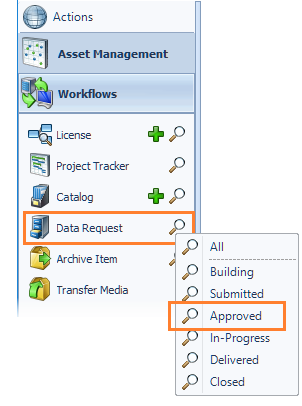
The results open in the Search module. Double-click on a data request in the grid to open. The data request opens in the workspace.
-
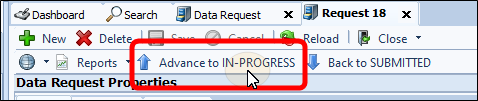
Click Advance to IN-PROGRESS and begin processing the order.
-
In the lower panel of the Data Request module, use the Products tab to track progress as you prepare the data. Use the Circulation column to update the location of items.
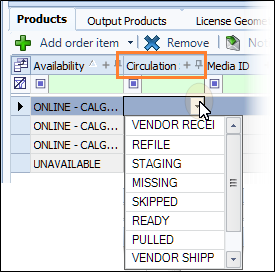
If your company workflow uses MobileMedia, these locations update automatically.
-
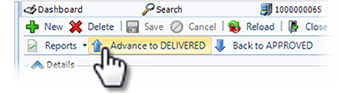
When all items have been sent, advance the status of the data request to Delivered by clicking Advance to Delivered.
Data Requests in Approved status are ready for executing.
To locate an Approved data request, click search next to Data Request and select Approved.
The results open in the Search module. Double-click on a data request in the grid to open. The data request opens in the workspace.
-
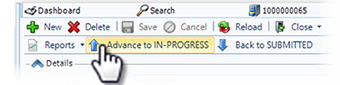
Click Advance to IN-PROGRESS and begin processing the order.
-
In the lower panel of the Data Request module, use the Products tab to track progress as you prepare the data. Use the Circulation column to update the location of items.
If your company workflow uses MobileMedia, these locations update automatically.
-
When all items have been sent, advance the status of the data request to Delivered by clicking Advance to Delivered.